IPTV Not Working? The 2026 Fix-It Checklist (App Crashes, Errors & Black Screens)
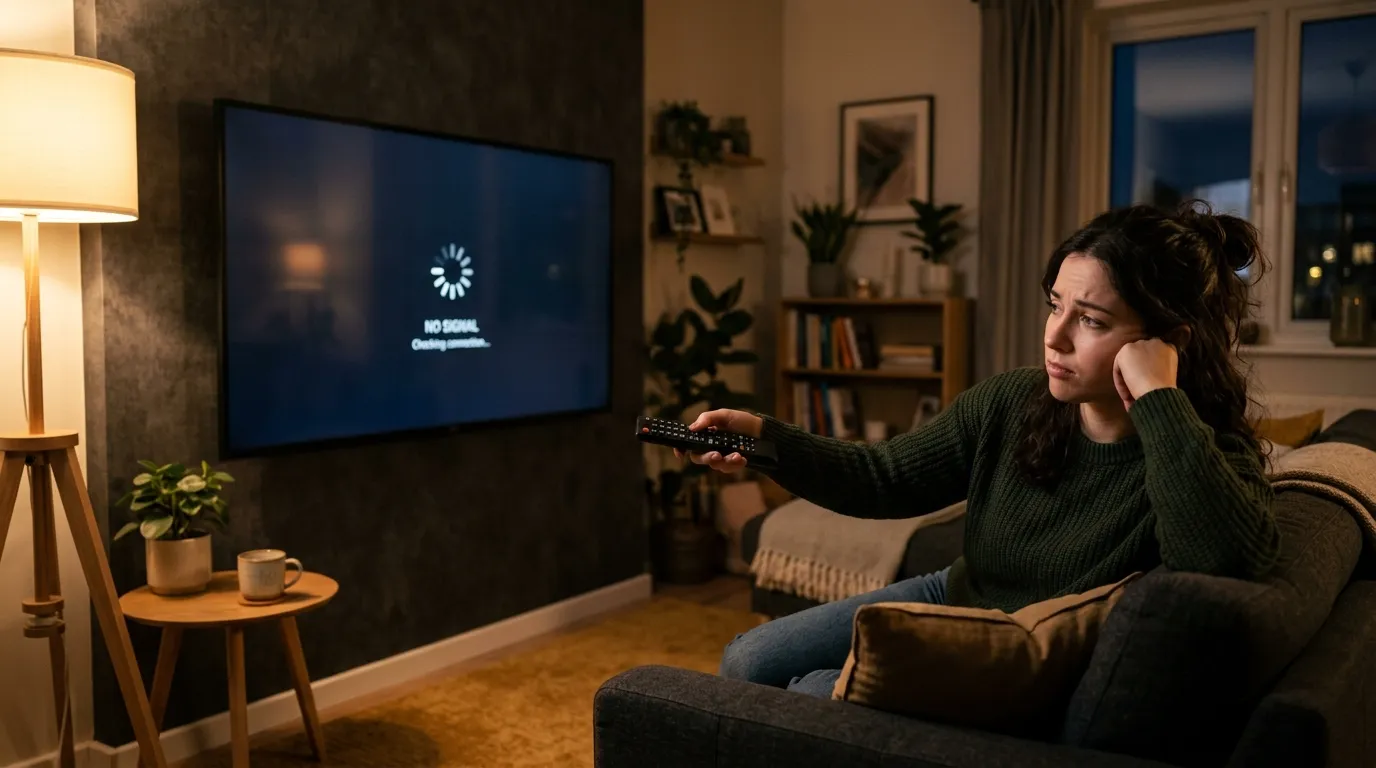
When IPTV suddenly stops working, the cause is almost always one of a handful of things — and most are fixable in under five minutes without contacting anyone. This is the checklist we walk customers through on WhatsApp every day, ordered from most to least common. (If your problem is specifically freezing or stutter mid-stream, that’s a different list — jump to our buffering fixes.)
Key takeaways
- “Not working” usually means one of four things: an app glitch (restart fixes it), a login/expiry issue, a network/DNS block, or a provider-side outage — check them in that order.
- The single most effective first step is a full restart of the app and the device — it clears the majority of “IPTV stopped working” cases instantly.
- If everything on your end checks out and channels still won’t load, it’s likely provider-side — message us and we’ll confirm within minutes.
Quick fix first: restart the app and reboot the device — that alone clears most “IPTV stopped working” cases. If that doesn’t do it, work down the list in order.
Step 1 — Restart the app and the device (fixes most cases)
Force-close the IPTV app completely, then restart the device (not just standby — a real reboot). On a Firestick: Settings → My Fire TV → Restart. This clears cached errors, stale sessions, and memory issues that cause crashes and black screens more than any other single fix.
Step 2 — Check your internet is actually up
Open any other app (YouTube, a browser) on the same device. If nothing streams, it’s your connection, not IPTV:
- Reboot the router (off 30 seconds).
- Prefer Ethernet or 5 GHz Wi-Fi (why it matters).
- If other apps work fine but IPTV doesn’t, move to step 3.
Step 3 — Is the subscription still active?
An expired or suspended line is the most common “everything was fine yesterday” cause. Signs: channels list loads but nothing plays, or a “subscription expired / authentication failed” message. Check your renewal date — with us it’s on your WhatsApp thread — and if you’re unsure, send us a message and we’ll check the line status instantly.
Step 4 — Re-enter your login (fixes “invalid credentials”)
If you see a login or “invalid details” error, the Xtream Codes credentials likely got corrupted or the server URL changed:
- Delete the playlist/profile in the app and re-add it, typing the server URL, username, and password exactly as sent — mind the
http://and port. - App-specific steps: IPTV Smarters Pro, TiviMate, IBO Player.
Step 5 — Your ISP may be blocking the stream
If the app, login, and subscription are all fine but streams still stall or refuse to load — especially in the evening — your internet provider may be throttling or blocking IPTV traffic. The fix is a DNS change or a VPN:
- Try switching the device’s DNS to a public resolver (Cloudflare 1.1.1.1 or Google 8.8.8.8).
- Or run a VPN for IPTV — this resolves a surprising share of “worked at my old house, not here” cases.
Step 6 — Fixing the “IPTV Smarters Pro has stopped” crash
This exact crash is common enough to call out. In order:
- Force-close and reopen (step 1).
- Clear the app’s cache: device Settings → Apps → IPTV Smarters Pro → Clear cache (not data — clearing data wipes your login).
- Update the app — an outdated version after a device OS update is a frequent culprit.
- Still crashing? Reinstall it and re-enter your login. Full walkthrough in our Smarters Pro setup guide.
Step 7 — When it’s not you
If you’ve done all of the above and channels still won’t load, it’s almost certainly provider-side — a server maintenance window or a temporary outage. This is where a real provider earns its keep: message us on WhatsApp and we’ll tell you within minutes whether it’s an outage (and when it’s back) or something still to fix on your device. No honest service is up 100% of the time, but you should never be left guessing.
Frequently asked questions
Why did my IPTV stop working all of a sudden?
The top three reasons: the app needs a restart, the subscription lapsed, or there’s a short provider-side outage. Work through steps 1–3 above and you’ll identify which within a couple of minutes.
Why does IPTV Smarters Pro keep crashing?
Usually a cache or version issue — clear the app cache (keep your login), update the app, and if it persists, reinstall. An OS update on the device without an app update is the classic trigger.
My channels load but won’t play — what’s wrong?
That pattern points to an expired subscription or an ISP block rather than an app fault. Check your renewal date first, then try a DNS change or VPN.
Is it my internet or the IPTV service?
Quick test: open YouTube or a browser on the same device. If those fail too, it’s your connection. If they work and only IPTV struggles, it’s login, ISP-blocking, or provider-side — steps 3–6.
Still stuck? We’ll check the line in minutes
The advantage of a provider that answers: you don’t have to diagnose alone. Message us on WhatsApp and we’ll confirm whether your line is active and whether there’s an outage. Not a customer yet and want to test reliability before committing? Grab a free 24-hour trial — plans start at €5/month billed yearly once you’re happy.